 Timeline
How to see your location history on iPhone
Your iPhone keeps a private record of the places you visit. Here’s where to find it in Apple Maps and Settings, how long it’s kept, and how to clear it.

Where iPhone keeps your location history
Your iPhone keeps a list of places you visit, called Significant Locations & Routes. The easiest way to see it is in Apple Maps, under Places › Visited Places. The switch that controls it lives in Settings, under Privacy & SecurityLocation ServicesSystem Services.
Apple says the record is encrypted and can't be read by Apple. Visited Places arrived in iOS 26 and is offered in 32 countries and regions, including the US, the UK, Canada and Australia, but none in the EU.
See the places you've visited in Apple Maps
- Open Maps and swipe up on the card at the bottom.
- Tap Places, then Visited Places.
- Scroll through All Visits, or search for a place.
Maps only lists stops where you stayed a while somewhere it can name, like a shop or a restaurant. Journeys and unnamed places don't show up. To fix an entry, tap the ⋯ next to it. You can remove it, correct the place or add a note.
Find Significant Locations in Settings
- Open Settings and tap Privacy & Security.
- Tap Location Services.
- Scroll to the bottom and tap System Services.
- Tap Significant Locations & Routes. You may need Face ID or your passcode.

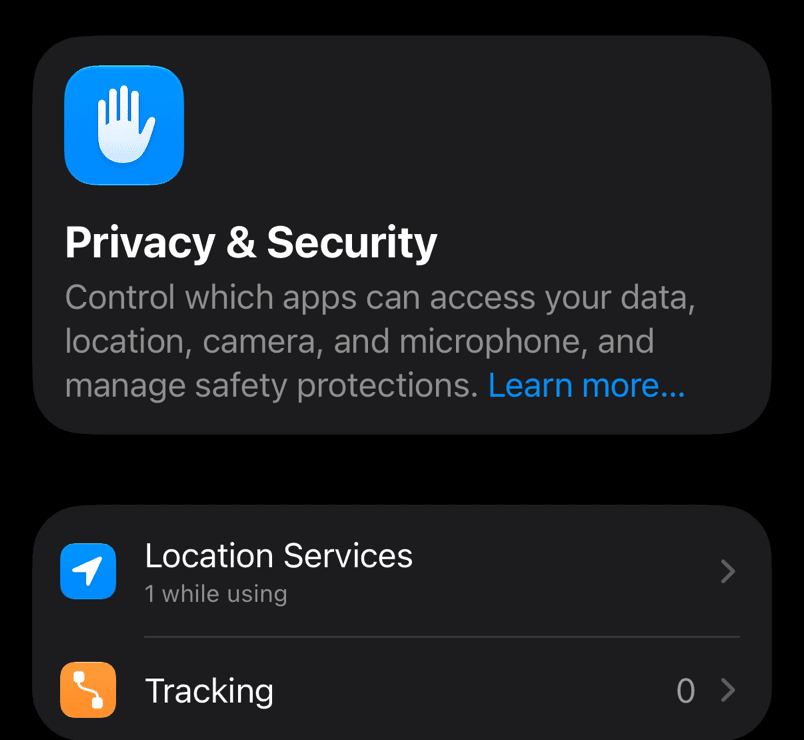
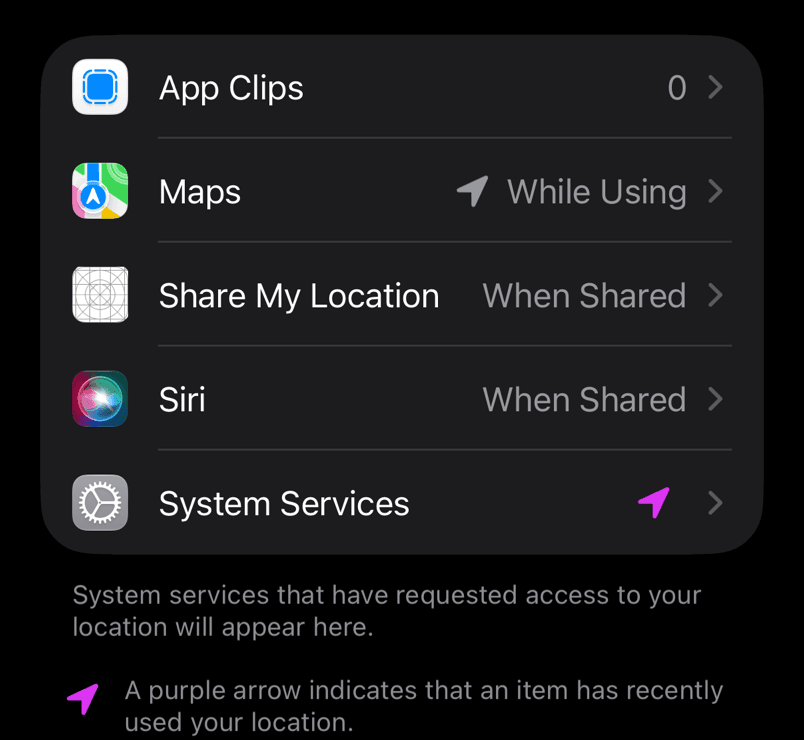
This screen is mostly a switch and a button to clear the history. To actually read your places, Maps is better.
How long Apple keeps it
The first time you open Visited Places, Maps asks how long to keep visits: 3 months, a year or forever. You can change it later with Keep Visits at the bottom of the list. Picking a shorter period deletes older visits straight away.
There's no export. Apple doesn't offer a way to take your visits out of Maps.
Clear it or turn it off
To delete your visits, open Visited Places and tap Clear History at the bottom. Maps offers to turn the feature off at the same time.
To stop recording new places, turn off Significant Locations & Routes in System Services. That doesn't delete what's already there, so clear the history too if you want it gone. Clearing applies to every device signed in to your Apple Account.
Keep a history you can export
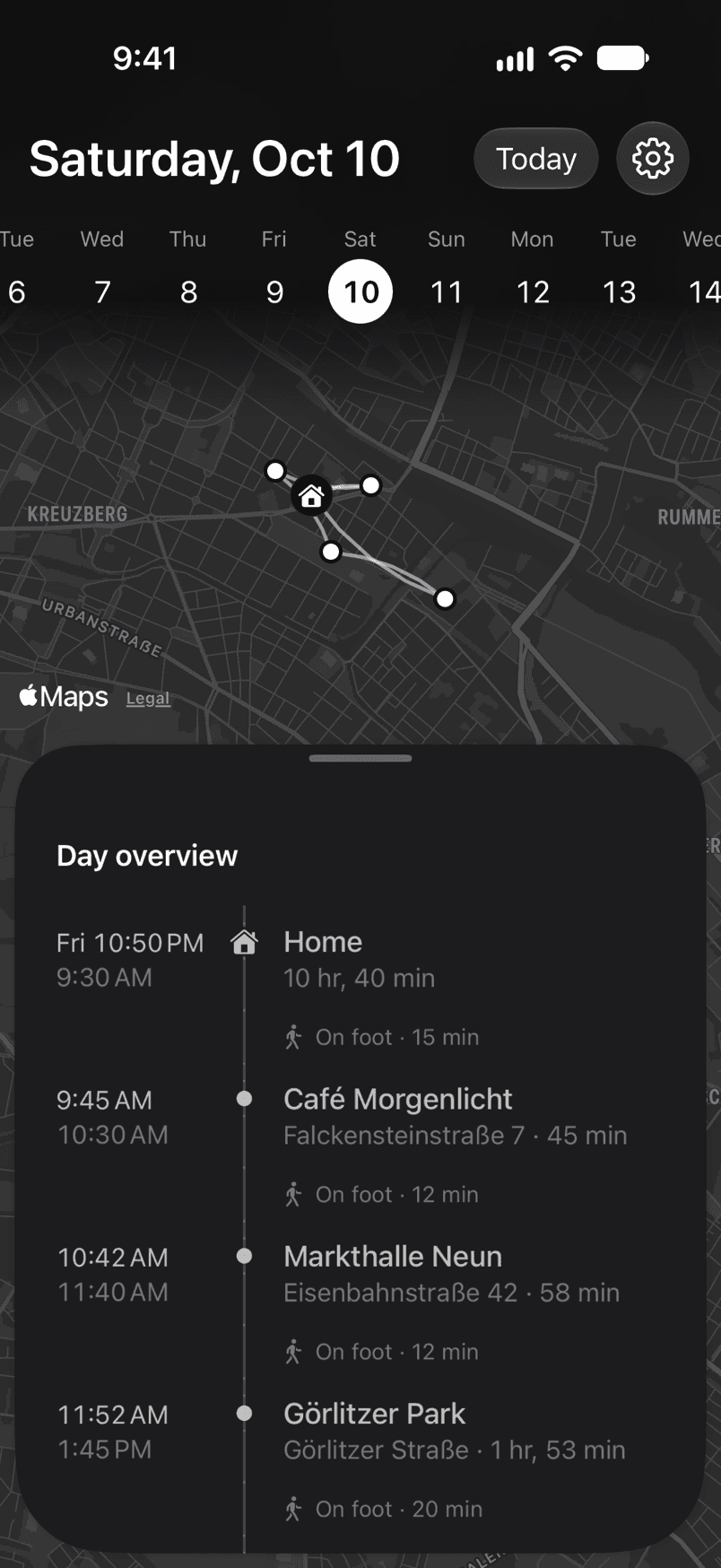
Visited Places is great for finding a café again. It won't show you a day as a string of stops and journeys, and you can't take the history with you.
Timeline for iPhone does both. It records your visits with Apple's visit detection and shows each day on a map: when you arrived, how long you stayed and how you got to the next place. It stays on your phone, with no account, and exports to plain text or JSON. You can also let Claude or ChatGPT read it to answer questions about where you've been. It's coming soon to the App Store.
For other apps, including Arc and Google Maps, see Google Timeline alternatives for iPhone.
Questions
Is my iPhone tracking where I go?
Yes, if Location Services and Significant Locations & Routes are on. The record stays on your devices, and Apple says it can't read it. Apps only get your location if you've allowed them under Location Services.
Why are some places missing from Visited Places?
Maps skips short stops, journeys and places it can't name. Nothing is recorded while Significant Locations & Routes is off, and visits older than your Keep Visits setting are deleted.
Is this the same as Google Maps Timeline?
No. Google Maps keeps its own separate history if you've turned Timeline on. Here's how to export your Google Maps Timeline, and why it might be missing visits.
Sources
Checked on 18 October 2026. The Settings screenshots come from the iOS 27 simulator, which doesn't have Visited Places, so those steps follow Apple's documentation.
- View Visited Places in Maps on iPhone, Apple Support
- Manage Location Services settings, Apple Personal Safety User Guide
- iOS feature availability: Visited Places, Apple